I talk often about the Ubuntu translations community, and one of the things I get asked many times is how to actually get started translating Ubuntu.
Because of this, and because I want to show everyone how easy it can be, I’ve decided to kick off a series of articles covering the different aspects of translations, starting with the basics.
So here it is: how to start translating Ubuntu, in 3 easy steps.
What You’ll Need#
One of the key values in Ubuntu is the low entry barrier for contribution, so that participating in improving Ubuntu can be both easy and fun. Therefore you won’t need much to start translating from day one: there is no need to install special tools and no previous technical knowledge is required. You’ll be using Launchpad, an easy to use yet powerful online translation tool.
Here are the minimum requirements to start translating Ubuntu:
- Internet: a device with Internet connection. This can be from home, a café, a public access point… - basically anywhere you can connect to the Internet from
- E-mail: a stable e-mail address that Launchpad can use to contact you
- Language knowledge: it’s important that you know English and the language you are going to translate into. English will always be the source language for translations
- Spare time: some time to dedicate to the translation of Free Software. You decide how much you want to get involved - from some spare minutes to some hours a week
- Be collaborative: be keen to work collaboratively and be part of the awesome Ubuntu translation teams!
Step 1: Create a Launchpad Account#
The first thing you’ll need is a Launchpad account. This will allow you to translate Ubuntu online using an intuitive web interface, and will also give you access to all of the free tools from the Launchpad software collaboration platform.
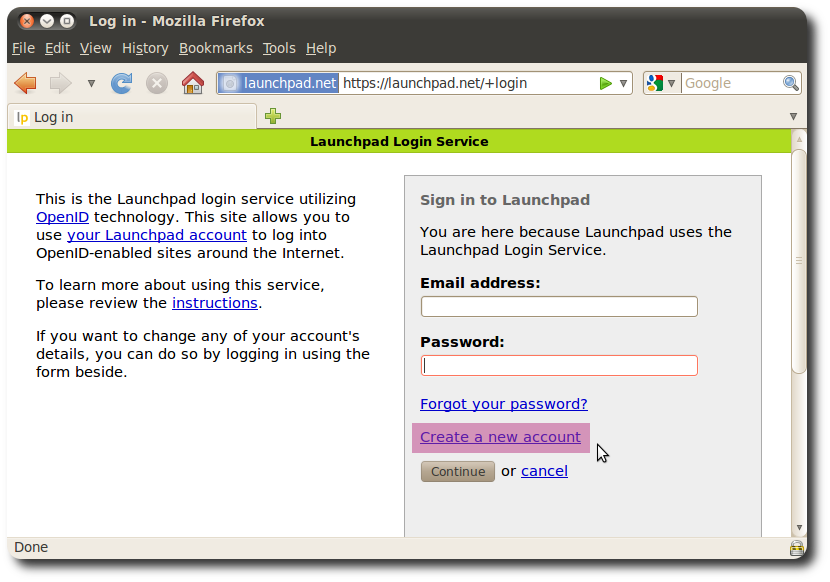
To create a new Launchpad account, simply go to the account sign-up page, click on the Create a new account link and follow the instructions.
Tell Launchpad About Your Preferred Languages#
Once you’ve set up your account, you’ll only need to log in and tell Launchpad which languages you’re interested in translating into.
To set your preferred languages in Launchpad, go to the Launchpad Translations page and click on the Change your preferred languages link. Once you’ve done that, you’ll be ready to start translating.
Step 2: Start Translating#
At this point you’ve got a Launchpad account and you’re all set and hopefully eager to start translating. What we need to do now is to find the Ubuntu applications we want to translate, get familiar with the interface and submit the first translation suggestions.
We’ll start by going to the main Launchpad Translations page. There you’ll see that Launchpad allows you to translate two categories of software: Operating Systems and Projects.
We’re interested in translating Ubuntu as a collection of integrated applications, so we’ll go to the Operating Systems category and we’ll click on the latest Ubuntu version.
From there you’ll find your way to the Ubuntu applications and their translatable messages. They are just a couple of clicks away and I won’t explain it here in detail. However, if you want to know more, you can find out in the Ubuntu Translations Quickstart Guide.
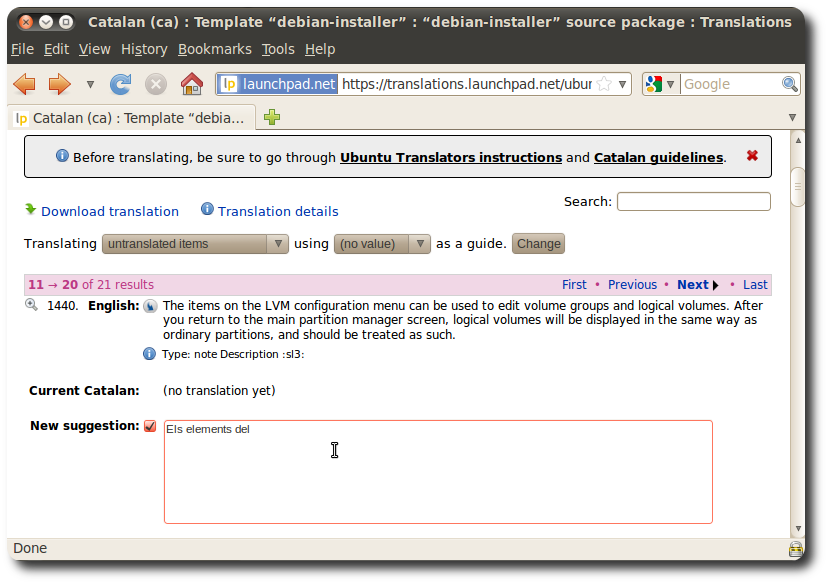
The translatable messages look like the one above: they are pairs consisting of original messages in English and translations in your language. In the web UI, English is the original to translate from, Current is the currently used translation, and New suggestion is where you can submit your translation.
Try this: find a message you think you can translate and enter your translation in the text box. Once you’ve done that, scroll down to the bottom of the page and click on the Save button.
You’ve now submitted your first translation suggestion. Congratulations!
You’ll find that the interface is very intuitive and self-explanatory, so try to get a bit more familiar with it before submitting more suggestions.
Tip: If you already know the Ubuntu application you’d like to translate, you can use a quicker way to go to its translation page. Try this: start the application and then go to Help Translate this application…, which will open a browser for you and take you directly to the translation
Step 3: Join a Translation Team#
Translating Ubuntu is a rewarding experience: it allows you to bring a localized system in your language to potentially millions of people. This also carries a degree of responsibility: we want to provide the best applications with the best translations around, which is why we put an emphasis on their quality.
Everyone with a Launchpad account can submit translation suggestions. While this is great for collaboration and for lowering the barrier to contribution, it is necessary to have some kind of peer reviewing mechanism to make sure these suggestions are correct and that the final user will understand them when using Ubuntu.
The role of translation teams is to have a set of members who are experienced translators review these suggestions, accept them if appropriate and come back to the submitter for feedback. They also take care of helping new translators get their bearings on their journey to becoming full-fledged Ubuntu translators.
Even if you don’t want to join them, it is always recommended to get in touch with the translation team when you’ve finished submitting some suggestions, so that they are aware of them and they can review them.
To join a translation team you can go to the global Ubuntu translation teams list, and click on the team for your language. On their home page in Launchpad you’ll then find instructions on how to get it touch with them and contribute to translating Ubuntu in your language.
*That was it! :)*
You now know all you need to become a full-fledged Ubuntu translator or to occasionally submit translations. If you are interested in getting more involved in the translations community, you can also learn more.